


An intranet is a great tool for organizing and sharing information with others. It also promotes collaboration between teams, departments, and even companies. So is social media. But what happens when you want to share social media updates on your intranet? How do you make sure employees have access to the most recent updates while keeping them focused on their tasks? The answer: intranet social media integration!
If you’re looking for a way to incorporate social media into your intranet, you’ve come to the right place. In this article, we’ll walk you through the steps to show social media on popular intranet software: Confluence, Microsoft SharePoint, and Notion.
Intranet social media integration combines social media content with websites, apps, events, emails, digital signage, and other digital tools to create a smooth experience between the brand’s digital assets and social presence.
At its core, intranet social media integration lets you connect your social media activity with the rest of your corporate digital world. This can include:
- Displaying real-time social media content on event screens, digital signage, and intranet platforms.
- Pulling in testimonials or reviews from social channels into your product pages.
- Embedding hashtag content from many social media platforms into your homepage.
Reuse social media content!
Get a social wall for your intranet
Here’s a clear explanation of why social media integration matters, broken down by strategic value:
- Instead of duplicating content across multiple platforms, integration lets you automatically repurpose content – like displaying your latest event posts on your career pages – saving time while keeping your messaging consistent.
- By linking your social media presence to your website, apps, or event experiences, you increase the number of touchpoints where people can encounter your brand. This consistent presence across channels builds brand awareness.
- Displaying social proof – such as employee testimonials, reviews, or tagged photos – builds trust. A workforce sees that others are engaging positively with your company, which helps to keep them employed for longer.
- Social media integration enables real-time communication. This is especially valuable for live events, product launches, campaigns, or crisis communications where timing is critical.
- Integrating social media and feeds helps drive cross-platform traffic. For example, your website can drive visitors to follow you on Instagram, while your Facebook page can direct followers to a product landing page.
Intranet platforms
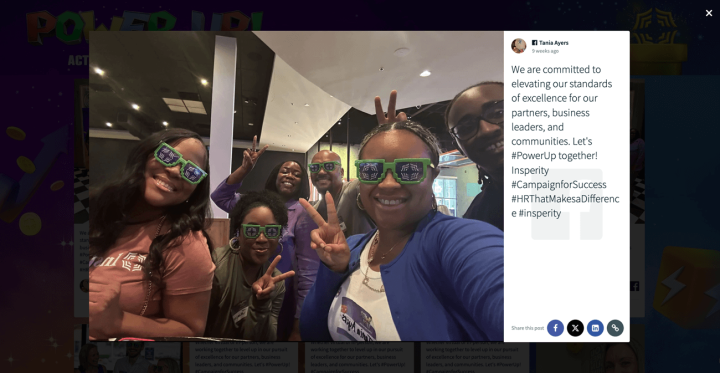
Insperity used a social wall to engage 4,500 employees across 18 locations. During their Fall Kickoff event, they collected over 800 posts into one feed, shown both at the event and on the company’s intranet.
Why it works: It creates a shared experience across dispersed teams, boosting morale and internal culture through visible recognition and participation.
➡️ Social media integration strengthens internal communications by showcasing employee voices and shared moments.
Check out the Insperity showcase.
There are several benefits to embedding a social feed on your intranet.
- It’s an easy and effective way to keep up with what’s happening in your organization and industry.
- It allows you to engage with customers and partners by making their voices heard on the platform you maintain.
- It gives you access to valuable input from the people who matter most: your employees!
Embed your social feed on your website in three simple steps.
1. Get a Walls.io account
First of all, set up your Walls.io account. It’s straightforward and takes less than 5 minutes to create your social live feed, including adapting the design.
In Sources, connect your account to any of your social media accounts and start collecting content from a hashtag, profile, or page.
Check out all sources: walls.io/sources
3. Embed your feed on your website
To customize your embed, go to the Embed & Display section in your Walls.io dashboard and adjust the parameters as needed.
You can set the width, height, and responsiveness of your widget. The wall header is hidden and the background is transparent by default to help it blend into your site — but you can change both if desired.
Enable Advanced settings to access more options. For example, if you’re using auto-height, you can add a Load more button so users can view additional posts. You can also customize the button text and the number of posts loaded per click.
Additionally, you can override default wall settings for the embed — such as layout, color scheme, language, or column layout — without affecting your main wall.
JavaScript is recommended for full feature support, but iframe is a solid alternative for platforms that don’t support JavaScript.
For detailed instructions, check out our embed guide.
Notion
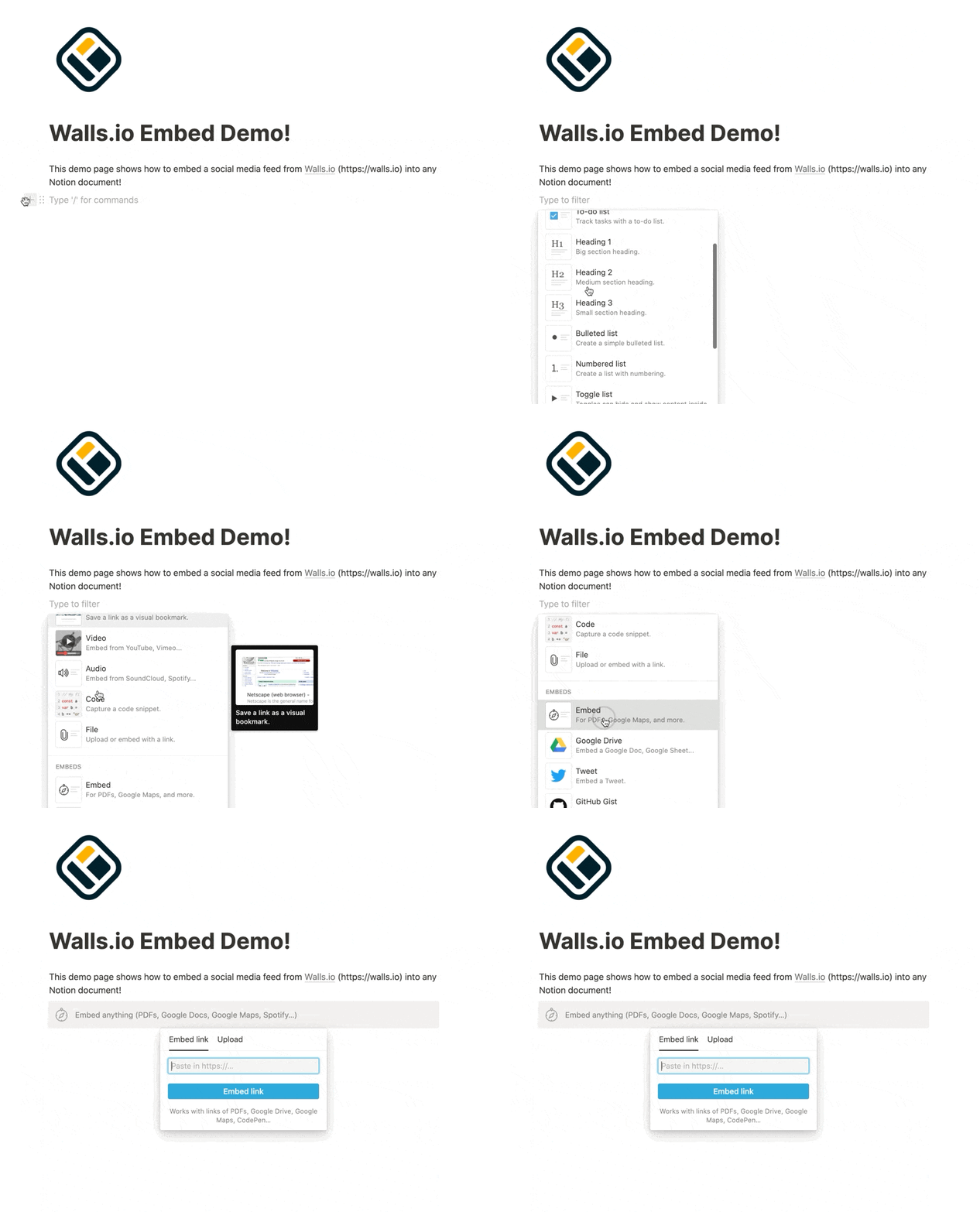
Notion is a market leader in online collaboration and intranet software. A Walls.io social feed can be easily embedded on any page of your Notion workspace. This 2-step guide explains how you can achieve this.
1. Set up your social feed with Walls.io To get started, sign-up for a Walls.io account. Then, set up your social feed by connecting your social media accounts to Walls.io and start adding sources, such as specific hashtags or your different social media accounts.
2. Add an Embed Block in Notion On your Notion page, add a new block and choose Embed from the block types available. Enter the URL of your wall (f.e. https://my.walls.io/starbucks) and click the Embed link button. You can now customize the size of your social media embed by dragging the handlebars.
Notion tips & tricks
- You can use the show_header parameter to hide your walls header, f.e. https://my.walls.io/starbucks?show_header=0
- The Walls.io widget is fully responsive and will automatically adapt to the size of the section you are embedding it into. You can override this by setting a fixed width, height, rows, and columns when generating the embed code (we recommend going with the default for maximum layout compatibility).
Here is a more detailed guide with more images on how to embed social media on Notion.
Confluence
Confluence is an intranet platform developed by Atlassian. It’s a collaborative tool that allows you to create and share knowledge in your organization. The platform includes an extensive set of collaboration, management, and security tools. If you want to spice up your Confluence intranet with a social feed, here are the steps to do it:
1. Set up your social feed with Walls.io Sign-up for a Walls.io account. Then, connect your social media accounts to Walls.io and add sources (hashtags, profiles, pages, etc.).
2. Embed your social feed on a Confluence page Choose the page on Confluence where you’d like to add a social feed. Then, click on Edit, and paste the link of your social feed where you want the wall to be. Once you have pasted the link, hover over the Change view menu and click Embed. The embed will automatically show up on your page. So all you have to do now is click Publish, and your social feed embed is done!
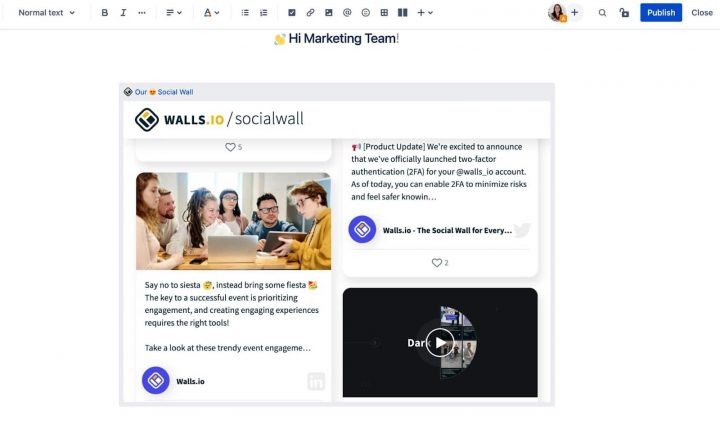
Here is a more detailed guide with more images on how to embed social media on Confluence.
Microsoft SharePoint is a web-based collaborative platform that helps share files, data, news, and resources across many organizations. This 3-step guide explains how to embed the Walls.io widget on Microsoft SharePoint sites.
1. Set up your social feed with Walls.io Sign-up for a Walls.io account. Then, connect your social media accounts to Walls.io and add sources (hashtags, profiles, pages, etc.).
2. Copy the iframe code of your social feed In your Walls.io account, go to Embed & Display and copy the iframe embed code. For most use cases, we recommend sticking with our Fluid default layout – if you prefer another layout, or want to pick a different color scheme or language, please have a look at the advanced settings before you copy the iframe embed code.
3. Embed your social wall on the SharePoint site First off, navigate to Admin center > Sites > Active Sites. Next, navigate to the site where you want to embed your social wall. Once on the site, go to Settings > Site information (top right). Next, click View all site settings. Scroll down and click HTML Field Security. Next, add my.walls.io to the list of domains and click OK. Afterwards, go back to your SharePoint site and click Edit. Next, click the plus sign (+) and type Embed in the search field; click on it. Finally, paste the iframe code from step 2 into the Embed section. Voilà – your social feed is successfully embedded on your SharePoint site!
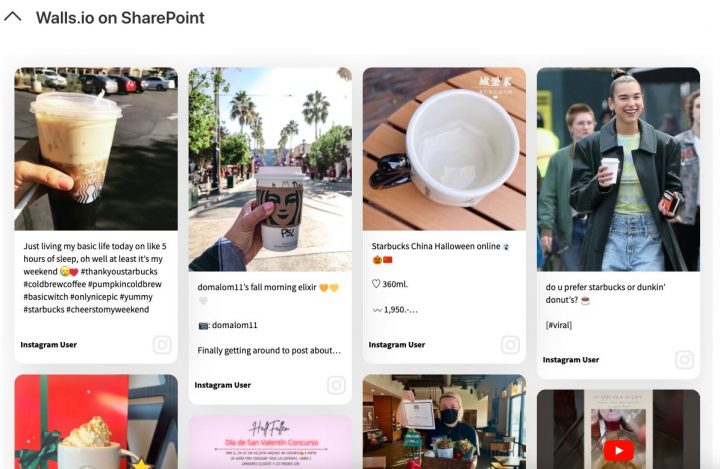
Here is a more detailed guide with more images on how to embed social media on Microsoft SharePoint.
Moderation and compliance
Among Walls.io’s features are advanced moderation, custom design, social media aggregation, privacy and security, and website embed — these set of controls let you aggregate any content automatically without having any worries.
Make your intranet more interesting
So there you have it! A social wall is an excellent way to engage your employees on your intranet. It allows them to easily share content with each other, tell their stories in a visual format and express themselves on any topic. You can even use the social wall as a tool for surveying your employees’ opinions about anything from company culture to new product development.
In conclusion, embedding a social wall is easy and will give your employees an opportunity to show off their work and make connections across departments or divisions. We hope this article has helped you understand how easy it is to get started with embedding a social wall into your intranet today!
Integrate your social media channels
Try Walls.io
Related resources: